I need to create an application which is hosted in IIS under 64 bit Window Servers 2008. There are several steps needed to prepare and they are shown as below:
1. download 64 bit Oracle Client and install administration type
win64_11gR2_client.zip
2. download 32 bit Oracle Client and install administration type
win32_11gR2_client.zip
3. use Net Configuration Assistant to name a database into tnsname.ora
4. log off the window so that the system can update the environment.
Friday, April 29, 2011

C#: Hosting an WCF application in IIS 7
I need to host an WCF application in IIS 7 under Window Servers 2008 R2. There are several steps needed to follow.
Create an WCF project in Visual Studio 2010

It is quite difficult to do debugging in WCF application. Visual Studio 2010 provides a WCF Testclient interface for developer to invoke menthods.


Hosting the project in IIS 7
Under IIS, right click folder "Sites" and select "Add Web Site..."
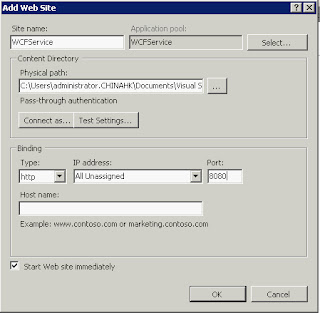
If your application runs under .Net 4.0 version, you need to go to application. Click the application and then click "Advanced Settings..." to update ".Net Framework Version" to v4.0

Last but not least, you need to restart the web site.
Create an WCF project in Visual Studio 2010

After creating a project WcfService, there are IWCFService.cs, WCFService.svc, WCFService.svc.cs and web.config in the solution.
For IWCFService.cs, you need to declare methods and customer data type.
namespace WcfService{[ServiceContract]public interface IWCFService{[OperationContract]People SayHello();}[DataContract]public class People{[DataMember]public String id {get; set;}public String name {get; set;}}}
For WCFService.svc.cs, you need to create the method declared in Operation Contract.
For web.config, in order to host in IIS 7, it needs some configurations.namespace WcfService{public class WCFService: IWCFService{public People SayHello(){return new People() {id = "1",name = "name"};}}}
For WCFService.svc, by default, you need not modify it.<?xml version="1.0"?> <configuration> <system.serviceModel> <services> <service behaviorConfiguration="CustomerServiceBehavior" name="WcfService.WCFService"> <endpoint address="" binding="wsHttpBinding" contract="WcfService.IWCFService"/> <endpoint address="mex" binding="mexHttpBinding" contract="IMetadataExchange"/> </service> </services> <behaviors> <serviceBehaviors> <behavior name="CustomerServiceBehavior"> <serviceMetadata httpGetEnabled="true"/> <serviceDebug includeExceptionDetailInFaults="true"/> </behavior> </serviceBehaviors> </behaviors> </system.serviceModel> <system.webServer> <modules runAllManagedModulesForAllRequests="true"/> <directoryBrowse enabled="true"/> </system.webServer> <system.web> <compilation debug="true"/></system.web></configuration>
Debugging Tool<%@ ServiceHost Language="C#" Debug="true" Service="WcfService.WCFService" CodeBehind="WCFSevice.svc.cs" %>
It is quite difficult to do debugging in WCF application. Visual Studio 2010 provides a WCF Testclient interface for developer to invoke menthods.

Configure the file permission for IIS
In order to host the project in IIS, it require to access information inside. You need to select the project folder and then right click "Properties". Under tab "Security", add IIS_IUSERS and assign read permission to it.

Hosting the project in IIS 7
Under IIS, right click folder "Sites" and select "Add Web Site..."

If your application runs under .Net 4.0 version, you need to go to application. Click the application and then click "Advanced Settings..." to update ".Net Framework Version" to v4.0

Last but not least, you need to restart the web site.
Thursday, April 28, 2011
C#: Read and Query Data from Excel File
The following code will show a simple example which reads and queries data in the file.
protected static String connectionString = "Provider=Microsoft.ACE.OLEDB.12.0;" +"Data Source=" + "C:\\sharedsupport.xls;" +"Extended Properties=Excel 8.0;"; ////"Select * from [" + DropDownList1.SelectedValue + "$A5:I" + rowNum + "]" //public Product findValue(Product item, DataTable table, ArrayList fieldList){var query = from r in table.AsEnumerable()where r.Field<String>("Product Part Number") == item.nameselect new{family = r.Field<Object>(fieldList[0].ToString())};foreach (var q in query){retun new Product() {family = q.family.ToString()};}return item;} //public DataTable getQueryTable(String cmd){OleDbConnection conn = new OleDbConnection(connectionString);conn.Open();OleDbCommand dbCommand = new OleDbCommand(cmd, conn);OleDbDataAdapter adapter = new OleDbDataAdapter();adapter.SelectCommand = dbCommand;DataSet dataSet = new DataSet();adapter.Fill(dataSet);conn.Close();return dataSet.Tables[0];}
Wednesday, April 27, 2011
C#: The Microsoft.ACE.OLEDB.14.0 provider is not registered on the local machine
I need to create an application which reads data from a excel file in 64 bit environment and an driver is needed.
Microsoft Access database Engine 2010 Redistributable
After I install the 64bit version, I run the following code to create a connection to an excel file

In order to solved this problem, I create a new VM and install the AccessdatabaseEngine.exe in a 64 bit environment. After that, the above code runs fine.
Microsoft Access database Engine 2010 Redistributable
After I install the 64bit version, I run the following code to create a connection to an excel file
String connectionString = "Provider=Microsoft.ACE.OLEDB.14.0;" +"Data Source=" + "C:\\Downloads\\haha.xls;" +"Extended Properties=Excel 8.0;HDR=YES;";OleDbConnection conn = new OleDbConnection(connectionString);conn.Open();
When I runs the above code, conn.Open() throws an InvalidOperationException was unhandled by user code. The exception shows "The Microsoft.ACE.OLEDB.14.0" provider is not registered on the local machine.

In order to solved this problem, I create a new VM and install the AccessdatabaseEngine.exe in a 64 bit environment. After that, the above code runs fine.
SQL Server: TCP Connection Opening
In order to remote access a SQL Server, I need to open a TCP port for listening.There are several steps are needed to prepared.
(1) Go to "Sql Server Configuration Manager" and expand "SQL Server Network Configuration"
(2) Click the designated instance "SQLEXPRESS"

(3) Right Click "TCP/IP" and then select "Enable"
(4) Right Click "TCP/IP" and then select "Properties"
(5) Select tab "IP Address"
(6) Under "IPALL", enter port "1433" in "TCP Port"

(1) Go to "Sql Server Configuration Manager" and expand "SQL Server Network Configuration"
(2) Click the designated instance "SQLEXPRESS"

(3) Right Click "TCP/IP" and then select "Enable"
(4) Right Click "TCP/IP" and then select "Properties"
(5) Select tab "IP Address"
(6) Under "IPALL", enter port "1433" in "TCP Port"

(7) Click button "OK"
(8) Under "SQL Server Services", right click the designated instance and then select "Restart"
SQL Server: Add a Read-Only Account using SQL authentication
I need to create a read-only account using SQL authentication to login SQL Server. There are several steps are needed to prepared and they are shown below:
1. Ensure the authentication of SQL Server
(1) Right click the SQL Server and select "Properties"
(2) Under page "Security", click "SQL Server and Windows Authentication mode" and then click button "OK"

(1) Right click folder "Security" and select create a new login
(2) Under page "General", type login name, password for SQL authentication and default database


1. Ensure the authentication of SQL Server
(1) Right click the SQL Server and select "Properties"
(2) Under page "Security", click "SQL Server and Windows Authentication mode" and then click button "OK"

2. Create a read-only account
(2) Under page "General", type login name, password for SQL authentication and default database

(3) Under page "User Mapping", click the designated database and set db_datareader in its role membership

(4) Click button "OK"
Tuesday, April 19, 2011
ASP.NET: DropDownList do not fire onselectdindexchanged
I add a DropDownList in a web page and the setting is shown below:
<asp:DropDownList ID="DropDownList1" runat="server" Height="35px"
            onselectedindexchanged="DropDownList1_SelectedIndexChanged" Width="184px"
            style="margin-right: 38px">
When I change the value in the DropDownList, it do not trigger the onselectedindexchange method. After some searching, i need to add attribute AutoPostBack
AutoPostBack="true"
Subscribe to:
Posts (Atom)